Alarm photos
An alert. A clearer picture.
Add visual context to a motion alarm. Choose the photo functions you need, match the detector to its hub and decide who may view or request images.

Verify a motion alarm.
See a sequence of still images from the detector that was triggered.
Request with permission.
Choose PhOD when authorised users need to request a photo.
Match the system.
Photo transport needs a compatible detector, hub and communication path.
Keep a clear record.
Review the alarm, photo requests and the people with access.
A detector, a compatible hub, useful context.
The examples below show the MotionCam (PhOD) family. Imaging, photo triggers and software requirements vary by the exact model; they are checked when you choose.
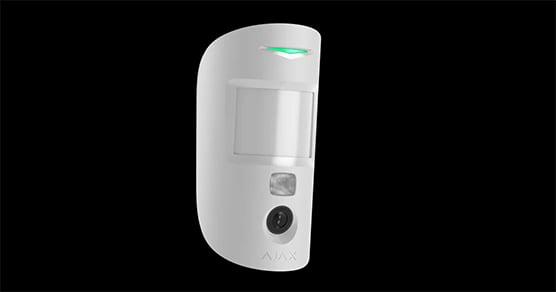
01. Detect movement.
The detector evaluates movement in its covered area. When armed and triggered, it can take a series of alarm photographs.
Explore MotionCam HDR (PhOD)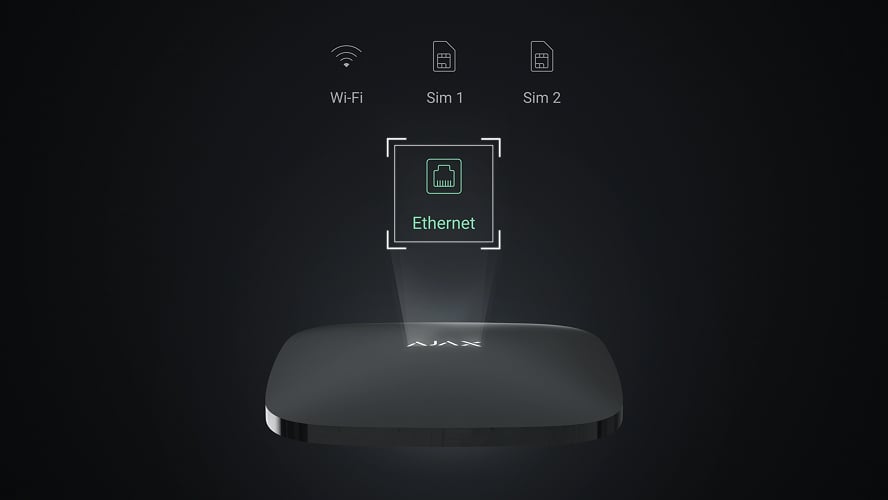
02. Deliver the event.
Choose a photo-capable hub and a supported radio or wired route for the exact detector. A normal security hub is not automatically a photo-verification hub.
Explore Hub 2 Plus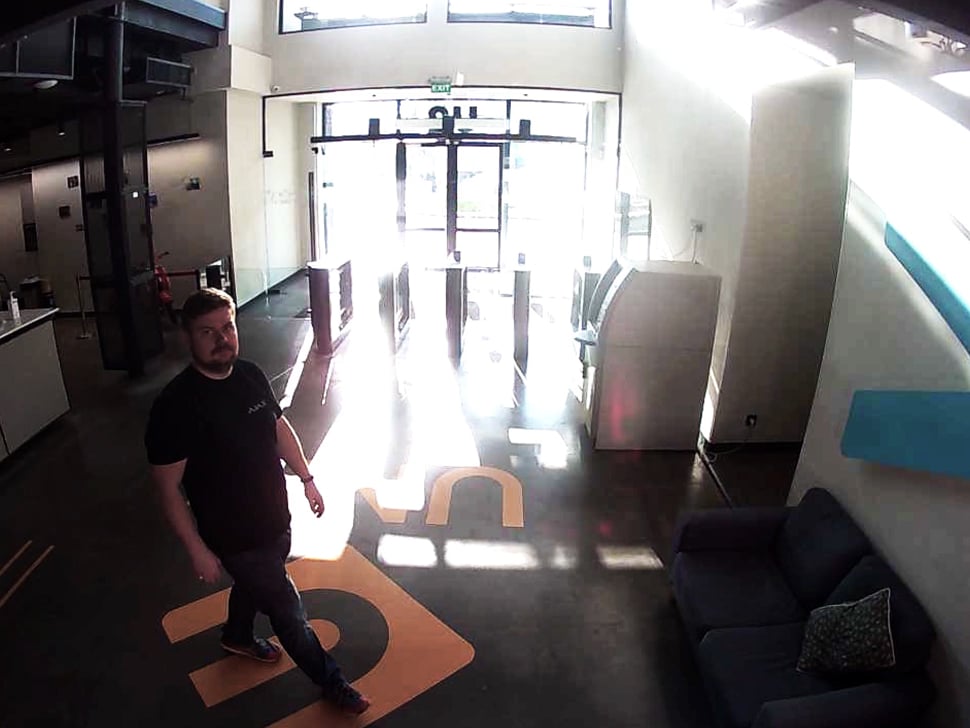
03. Read the image.
Authorised people use the images to assess the alarm. Supported HDR models retain more detail in difficult lighting; infrared illumination helps in darkness.
Explore MotionCam HDR
Choose when a photo is taken.
Alarm photos are available on photo-capable models. The additional triggers shown here need a supporting PhOD model, hub software and configured permissions.
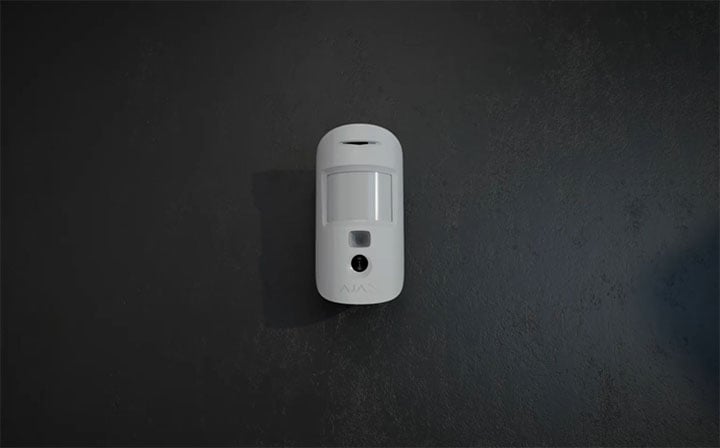
On a motion alarm.
The detector takes a photo sequence when its own armed motion detection raises an alarm. A standard MotionCam does not automatically photograph every other device’s alarm.
A useful view of the intended area.
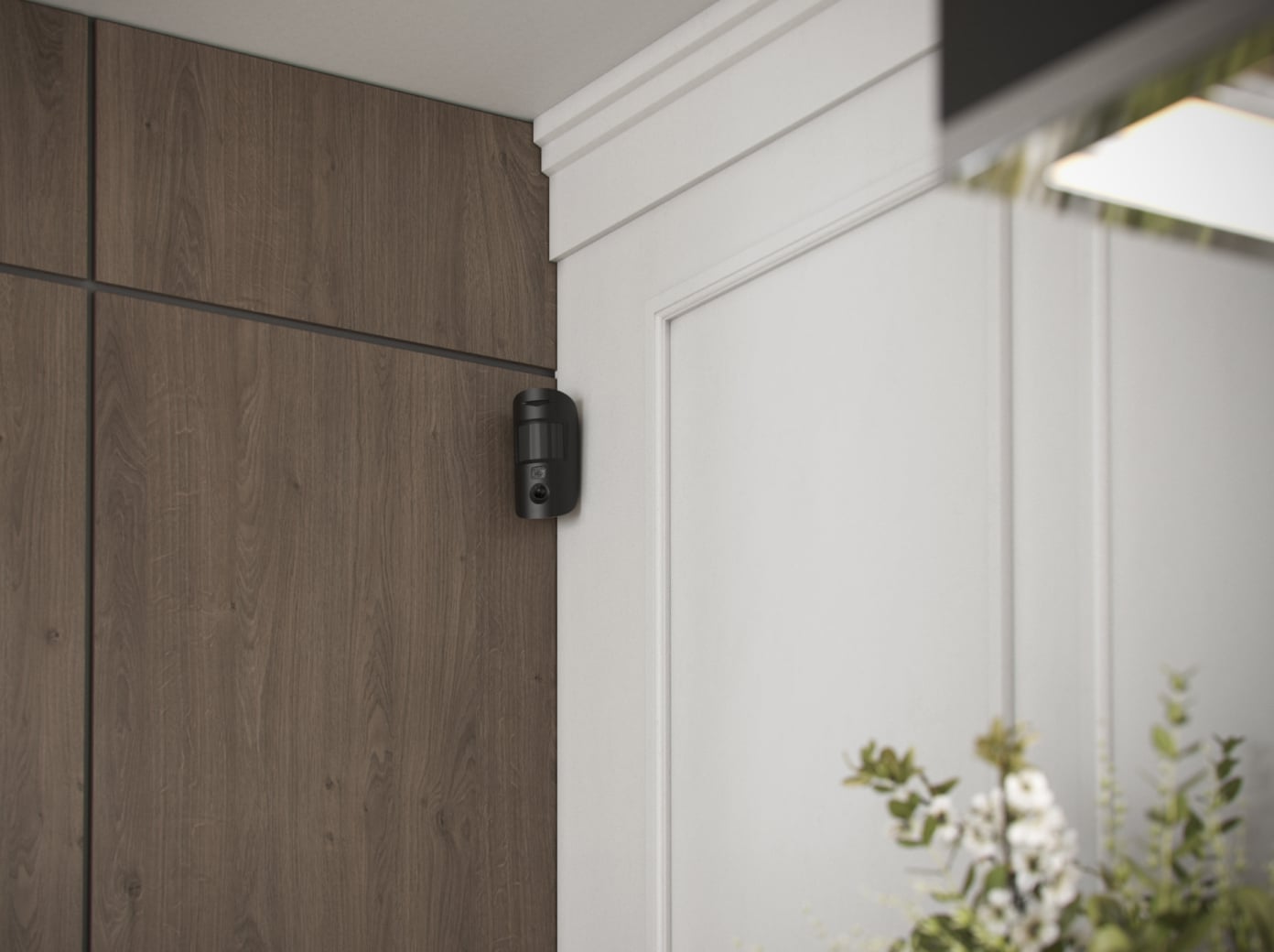
At home.
Plan the detection area and image view around the room, with access agreed for the people living there.
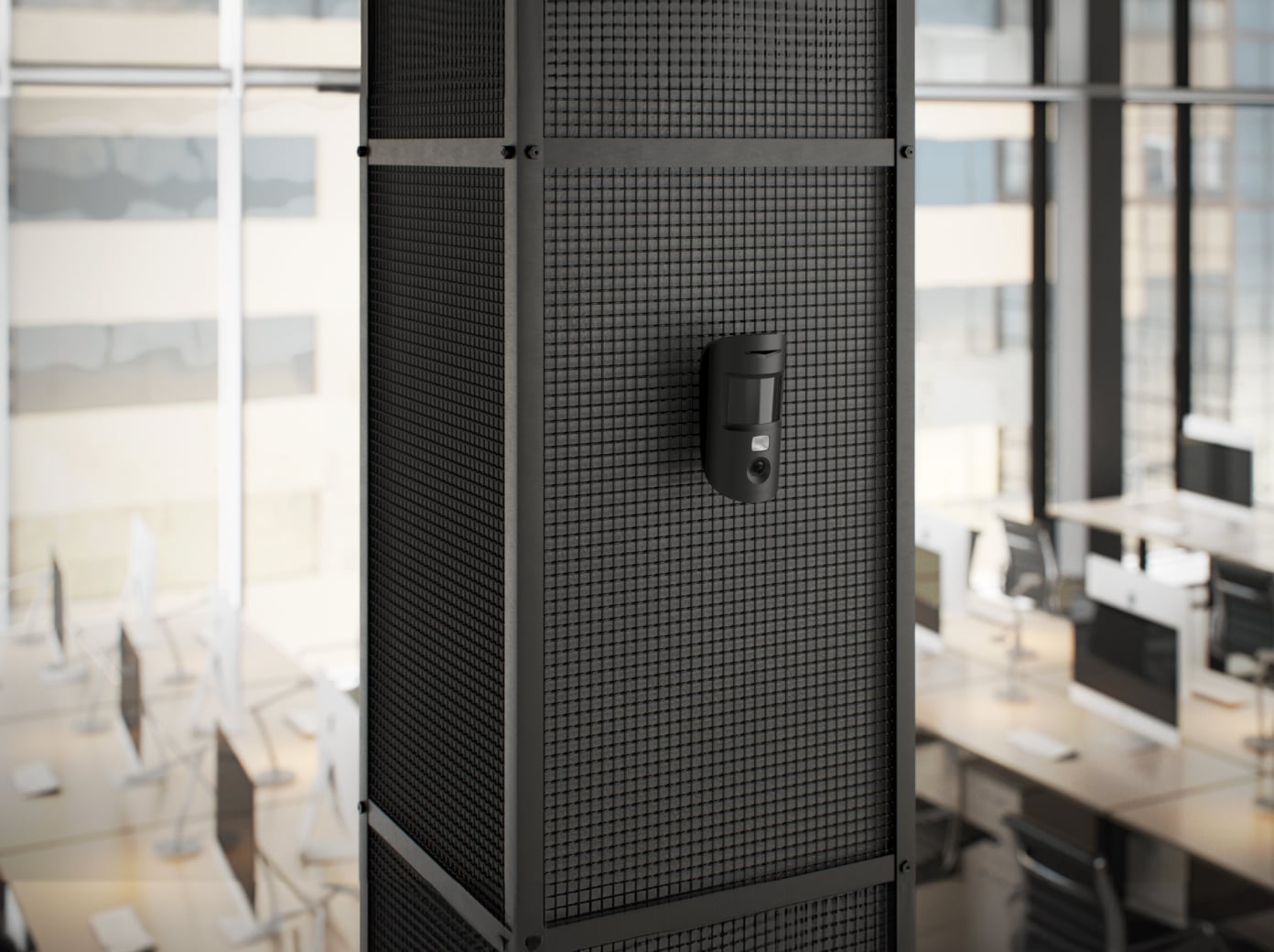
In the office.
Place detectors where an alarm photo helps explain an event; restrict image access to the appropriate users.
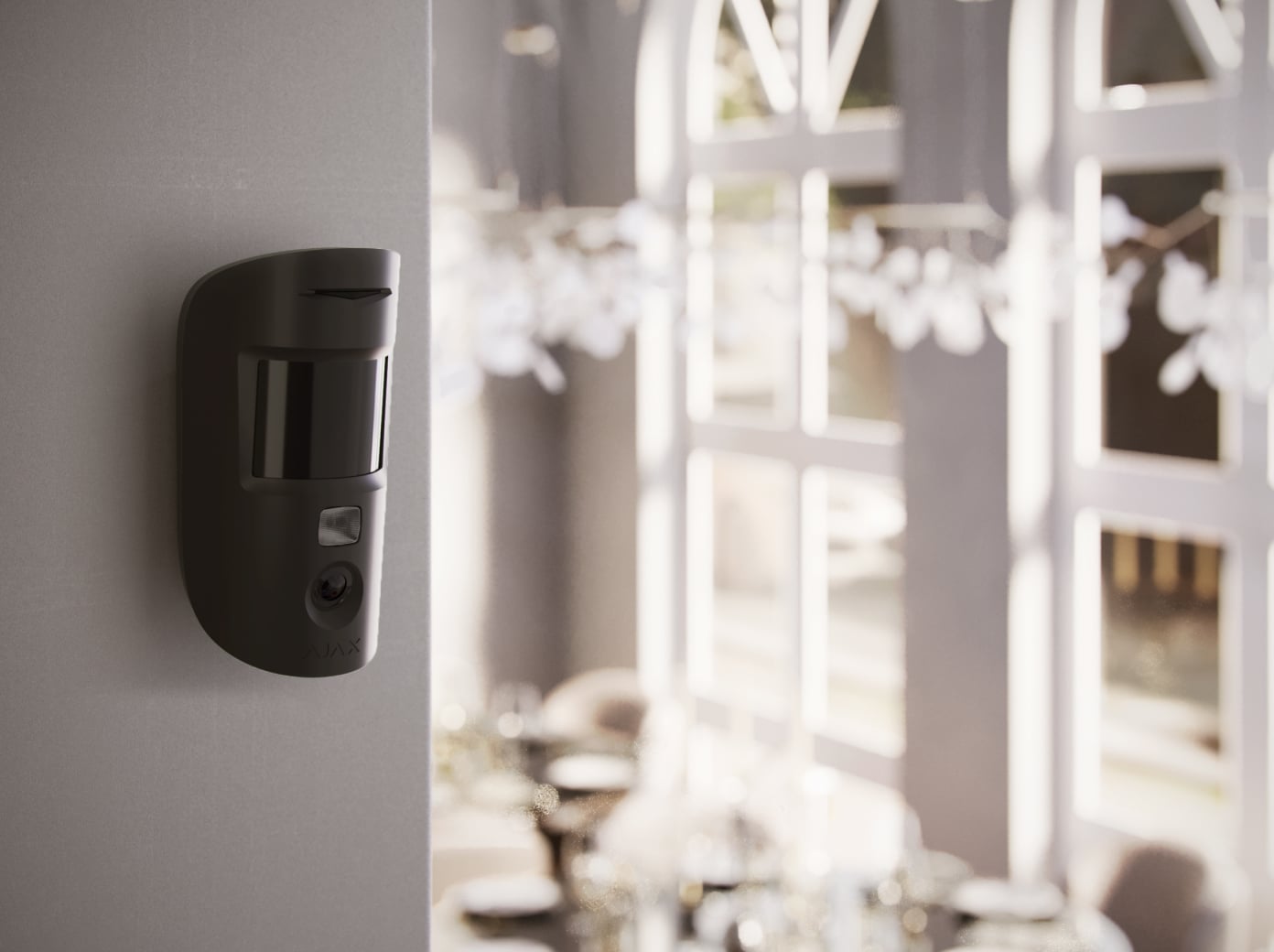
In shared premises.
Check the actual field of view, opening hours and privacy responsibilities before choosing photo triggers.
Your images. Deliberate permissions.
Photo verification provides context without creating a continuous live video feed.

Choose who can request images.
An authorised administrator manages photo permissions and the conditions under which requests are allowed. Photo access is not granted merely by adding a person to the property.
From a possible position to a tested view.
The coverage, image and communication path are reviewed together.
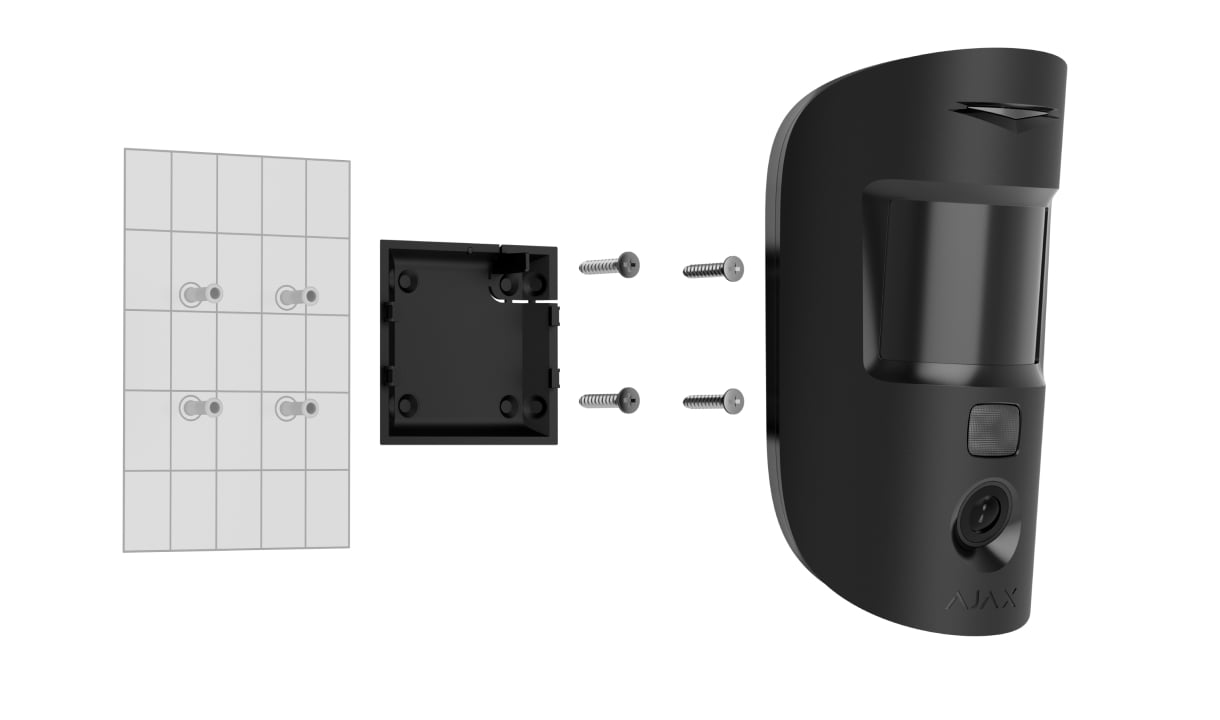
Check the detector’s position.
Use the mounting height and placement limits for the chosen model. Confirm that both detection and the camera view cover the area you intend.
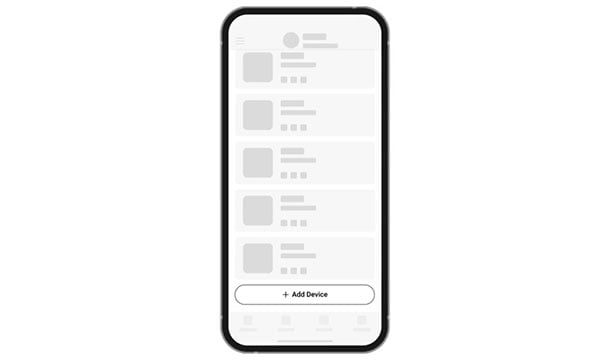
Add the exact device.
Pair it with a compatible hub, assign its room and verify the connection. A photo-capable range extender is needed if the chosen wireless route uses one.
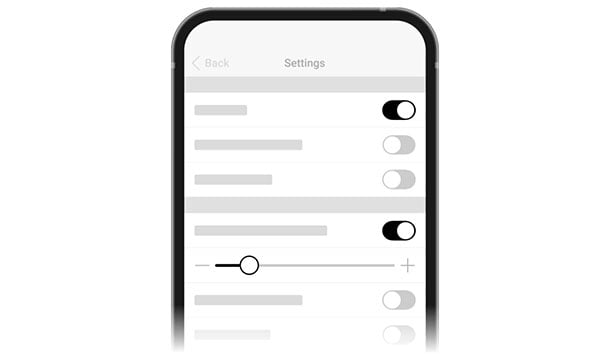
Test delivery and permissions.
Test an alarm and each additional enabled photo trigger. Confirm the recipients, privacy controls and successful image delivery before handover.
Make it fit your space
Configure your alarm photos.
Tell us about the indoor areas and how you want to use alarm photos. Complete the questions here, then compare your security configurations in the shared project.
A few useful answers.
Are alarm photos the same as live video?
No. MotionCam provides still-image sequences for supported triggers. Choose a video-surveillance solution when you need a live stream or continuous recording.
Do I need PhOD?
Choose a supporting PhOD model if you need requests, scenarios or other supported photo triggers beyond the detector’s own motion alarm. The exact model, firmware and permissions determine the available options.
Does any Ajax hub support photographs?
No. Check the exact detector and hub together. A wireless photo route also needs adequate photo-radio coverage; a range extender must support the required transfer.
Can I reuse these indoor detectors outside?
No. An outdoor installation needs a detector rated and designed for it, with a separate placement and environment review.
The details behind the solution.
Build the response around your property.
Bring photo verification together with opening detection, sirens and everyday control.
A LITTLE GUIDANCE. A CLEAR NEXT STEP.
Make the next step together.
Ask about this solution. We’ll help you check the equipment and the work your space needs.
Planning for your business?
Discuss a complete project for your sites, with services agreed around your needs.
Explore Business